Choose your sheet
Start a new sheet and check the artboard size before adding artwork. On our product page, choose your sheet size and select Open Gang Sheet Builder.

SUPPORT • ARTWORK • GANG SHEET TRAINING
A little guidance. A lot of possibilities. Learn your gang sheet builder, prepare your artwork, and get help from people who care.
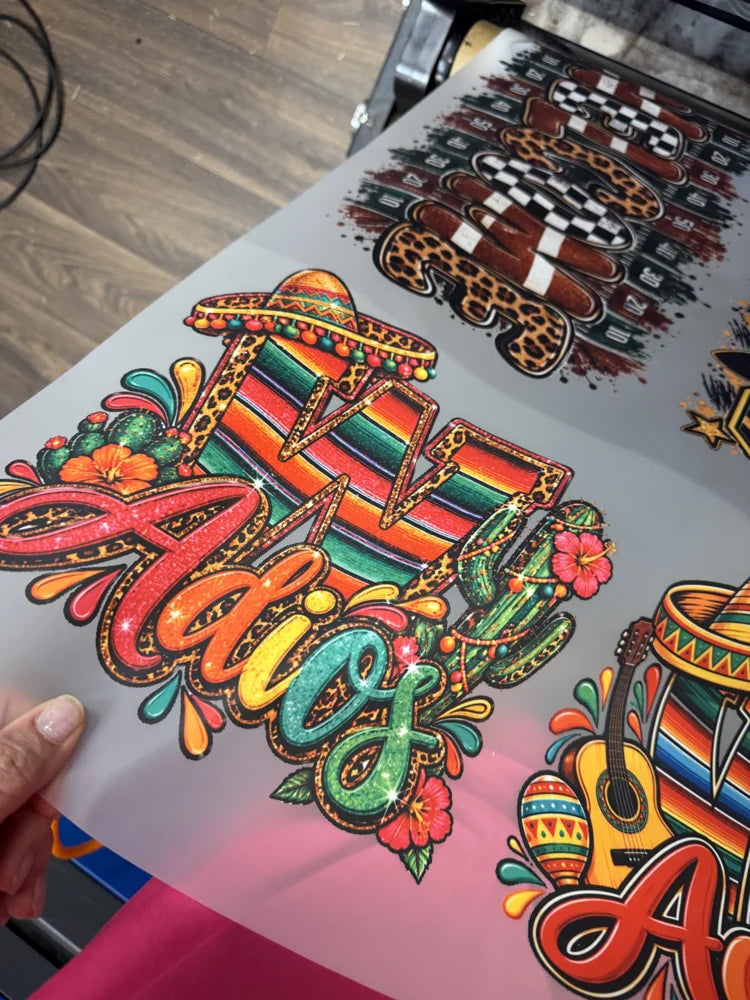
Start with six simple lessons. Each video link opens the relevant moment in the official Drip Apps walkthrough. Some tools depend on your store settings; screens may vary.
Start a new sheet and check the artboard size before adding artwork. On our product page, choose your sheet size and select Open Gang Sheet Builder.
Select Upload Images and choose files from your device. Review any background warning. Remove only backgrounds you do not want printed, then inspect the result.
Click an uploaded image to add it to the sheet. Enter its intended printed width or height. Keep the aspect ratio locked to prevent stretching.
Choose an image quantity and use Duplicate Image to make copies. Autofill Sheet fills available space with the selected design. Count the copies before finishing.
Leave room to cut between designs. Auto Nest rearranges artwork to use space more efficiently. Turn Snap when moving on in Settings for alignment guides, or off for free movement.
Review dimensions, copy counts, backgrounds, overlaps and sheet edges. Resolve low-resolution warnings at the final print size, then follow the builder’s on-screen completion steps.
Start sharp. Aim for 300 DPI at the size you will print.
Check the background. Keep only the parts you want on your transfer.
Give designs room. Leave cutting space and keep artwork inside the sheet.
Count twice. Check design copies and complete-sheet quantity.
Need artwork help? Email artwork@sedesignstore.com with your question and intended print dimensions.
Want help lining up your designs? This short lesson shows how Snap when moving works.
Watch snapping & alignment ↗Select a question to see the answer.
A transparent PNG at 300 DPI at its final print size is a good starting point. Check that edges and small details look sharp. Enlarging a small image can lower its effective resolution.
A solid background in your artwork may become part of the print. Review the background warning and inspect the design after any removal. Use a contrasting artboard background to see pale or transparent areas.
The image may not have enough resolution at your chosen print size. Use a higher-resolution original or reduce its print dimensions. Keep resolution and overlap warnings visible while you work.
Image quantity is the number of copies of a design within the layout. Sheet quantity is the number of copies of the complete layout. Check both so you order the amount you need.
Wait for your pickup confirmation and follow the instructions sent with your order. It will tell you when your order is ready and where to collect it.
Follow the pressing and peel instructions supplied with your transfers. If you are unsure which instructions apply to your order, contact us before pressing.
Email orders@sedesignstore.com with your order number and a short description of the issue. For artwork questions or corrections, email artwork@sedesignstore.com and include the intended design dimensions. Never include payment details.
Stormy & Eric are happy to help. Ask us about your artwork or your order before taking the next step.
Ask Stormy & Eric →